New! Switching User Source of Authority (SOA) in Entra ID
TL;DR: I’ve published a PowerShell tool that will switch SOA of user accounts.
In a hybrid model, you might still be running Active Directory Domain Services on premises, synchronising users into Entra ID with Entra Connect. It works, but it keeps your cloud identity dependent on domain controllers and legacy infrastructure with a very different risk profile to a cloud native platform.
If your strategy is to reduce reliance on AD DS and move toward Entra ID as the single source of truth, there is a clear blocker. Your users are still mastered on premises. Their Source of Authority sits in Active Directory, which means you are still tied to it.
Historically, the workaround was to remove a user from the sync scope. That triggered a soft delete in Entra ID, after which you could restore the account as cloud only. It looked simple, and in many cases licenses and group memberships appeared intact.
Under the hood, though, it was a different object with a new objectId. Anything referencing the original identity did not automatically follow. What felt like a clean authority switch was actually a delete and recreate with hidden risk.
That has now changed.
Microsoft now allows you to switch a user’s Source of Authority from on premises to cloud without deleting and recreating the account. In this post, I will walk through what that means, what to consider, and how to approach it safely, including a PowerShell based GUI tool to make it easier to operationalise.
Understanding Source of Authority in Hybrid Identity
In a hybrid identity environment with Entra ID and Active Directory, Source of Authority (SOA) determines which system has authoritative control over user identity attributes:
On-premises SOA: Active Directory Domain Services is in charge. Changes made in AD DS flow to Entra ID through directory sync (Entra Connect Sync or Entra Cloud Sync). Changes attempted directly in Entra ID are blocked or overwritten on the next sync cycle.
Cloud SOA: Entra ID is authoritative. The user is managed in the cloud, and on-premises AD changes no longer flow to Entra ID for that user.
Historically, SOA was determined at the moment of user creation. If a user was synced from Active Directory, they got on-premises SOA permanently. If created directly in Entra ID, they got cloud SOA. There was no way to change it. This created a significant challenge for organizations planning cloud migration strategies. You couldn’t transition existing users to cloud-native management without rebuilding them from scratch.
Real-World Scenario
Imagine you’re an identity architect responsible for 5,000 users synced from on-premises AD. Leadership wants to decommission the on-premises directory and move to 100% cloud-managed identity for agility and cost savings. But those 5,000 users can’t just flip a switch—they’re locked to on-premises authority. The traditional approach? Delete each user account in Entra ID, lose all their licenses and groups, then recreate them as cloud-native users. That’s not migration; that’s identity chaos.
The New Microsoft Graph Capability
Microsoft addressed this gap with the onPremisesSyncBehavior endpoint in Microsoft Graph API. This endpoint allows administrators to query and modify a user’s SOA status programmatically.
I recently did a deep dive demonstration of switching the user SOA with Ru Campbell from Threatscape. Check out the video below:
How It Works
The endpoint exposes a single critical parameter: isCloudManaged
true= Cloud SOA (Entra ID is authoritative)false= On-premises SOA (AD DS is authoritative)
You can use two operations:
GET: Check the current SOA state
GET https://graph.microsoft.com/v1.0/users/{userId}/onPremisesSyncBehavior
PATCH: Switch the SOA
PATCH https://graph.microsoft.com/v1.0/users/{userId}/onPremisesSyncBehavior
Content-Type: application/json

{
  "isCloudManaged": true
}
This requires the User-OnPremisesSyncBehavior.ReadWrite.All permission, which is a specialized delegated or application permission for this exact purpose.
The Catch
While this is a powerful capability, there’s a catch: it’s Graph API only. There’s no portal UI in the Entra admin center (at least not yet). For many admins, this means writing custom PowerShell scripts, understanding REST API authentication, handling on-premises attribute cleanup, and managing batch operations manually. That’s where complexity creeps in—and where my tool comes in.
Introducing the User SOA Switch Tool
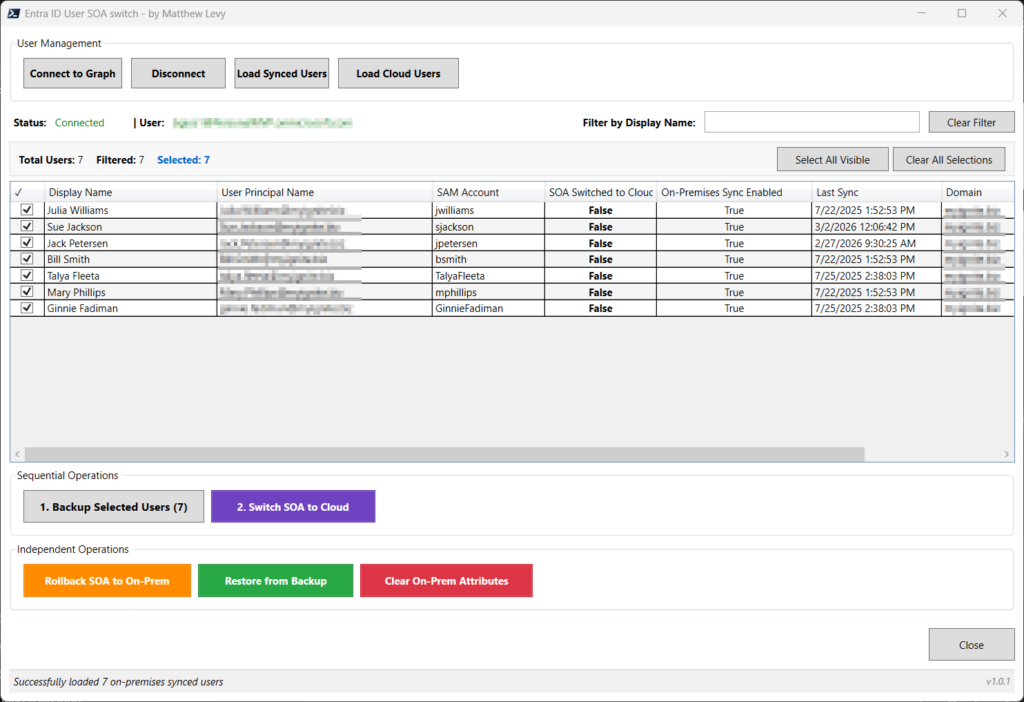
I’ve built a PowerShell-based GUI tool that abstracts away the Graph API complexity and provides a safe, visual interface for switching user SOA in bulk. You can find it on GitHub: https://github.com/matthewjlevy/user-SOA-Switch
The tool wraps the onPremisesSyncBehavior endpoint with:
- A WPF-based graphical interface (no scripting required)
- Built-in safety features like automatic backups and verification
- Batch operations with visual selection and filtering
- Automated two-phase processing (SOA switch + on-premises attribute clearing)
- Rollback capability if you need to revert changes
Key Features
1. Interactive Connection
Connect to Microsoft Graph with a single click. The tool automatically requests the necessary scopes (User.Read.All and User-OnPremisesSyncBehavior.ReadWrite.All).
2. Load and Filter Users
Load synced users (onPremisesSyncEnabled eq true) into a visual DataGrid. Filter by typing 3+ characters to quickly find specific users or departments.
3. Real-Time SOA Status
For each user loaded, the tool queries their current isCloudManaged status so you can see who’s already cloud-managed and who needs switching.
4. Multi-Select with Checkboxes Select individual users or use “Select All” for batch operations. Filter, select, then proceed.
5. Attribute Backup Before making any changes, the tool can create a JSON backup of selected users, including their on-premises attributes (ImmutableId, SamAccountName, DistinguishedName, ProxyAddresses, etc.). This gives you a safety net for recovery.
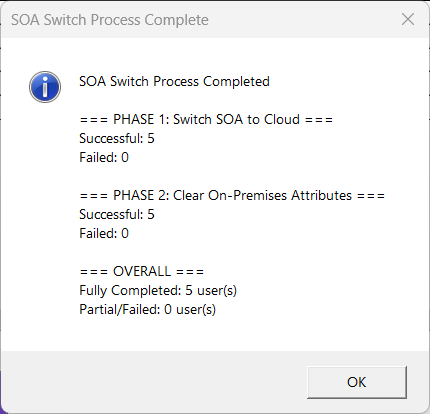
6. Two-Phase SOA Switch The tool automatically handles both switch and clear steps:
- Phase 1: PATCH
isCloudManaged=truevia Graph API - Phase 2: Clear on-premises attributes using the ADSyncTools module
This two-phase approach is important because simply switching SOA isn’t enough—you need to clear the on-premises sync metadata to fully transition the user to cloud authority.
7. Rollback Capability
If you need to revert users back to on-premises SOA, the tool can set isCloudManaged=false. Note that this doesn’t restore attributes automatically—use the separate “Restore from Backup” function for that.
Prerequisites
- Platform: Windows 10/11 or Windows Server
- PowerShell: Version 7.0 or higher
- Modules (auto-installed by the tool):
- Microsoft.Graph.Authentication (v2.35.0+)
- Microsoft.Graph.Users (v2.35.0+)
- ADSyncTools
The tool will check for these modules on startup and offer to install them if missing.
When to Use User SOA Switching
This capability opens up several important use cases for identity architects and admins:
1. AD and Entra Connect Decommissioning
The most obvious scenario: you want to retire your on-premises Active Directory and Entra Connect infrastructure. Switching user SOA lets you transition to cloud-native identity management while keeping user accounts intact, no deletion, no disruption.
2. Phased Cloud Migration
Rather than a big-bang migration, you can move users to cloud SOA in batches—by department, region, or pilot group. Test the waters, validate workflows, then scale the approach organization-wide.
3. Merger and Acquisition
When consolidating identity systems after an M&A event, you may need to move acquired users from their legacy on-premises directory into cloud-managed Entra ID without rebuilding their entire identity.
4. Regulatory and Compliance Requirements
Some industries require identity data to be managed exclusively in cloud environments for audit trail, data residency, or compliance purposes. SOA switching lets you meet those requirements without user downtime.
Security and Compliance Considerations
Important behaviors to understand:
⚠️ Disclaimer: This is NOT an official Microsoft product or tool. This PowerShell script and GUI application are provided as-is for managing Entra ID (Azure AD) user attributes and Source of Authority (SOA) transitions. By using this tool, you acknowledge that you understand and accept the risks.
⚠️ Users can remain in the on-premises sync scope after SOA switch. Switching a user to cloud SOA doesn’t automatically remove them from Entra Connect sync scope. However, once cloud-managed, changes made to that user in on-premises AD will not flow to Entra ID. This prevents accidental overwrites but requires clear communication and process changes for your helpdesk team.
⚠️ On-premises attributes are cleared in Phase 2. The tool clears attributes like ImmutableId, SamAccountName, and ProxyAddresses as part of the cloud transition. This is by design (breaking the sync link), but you should understand what’s being removed. That’s why the backup feature is critical.
⚠️ Switch related group SOA before user SOA. You should already have switched group SOA (a related but separate process), before switching users that are members of groups to avoid dependency issues.
⚠️ Test with a pilot group first. As with any identity operation, validate the process with a small pilot group before running bulk operations on your production user base.
Getting Started
Ready to modernize your hybrid identity? Here’s how to get started:
- Download the tool from GitHub
- Review the README for detailed setup instructions and command-line options
- Run the tool on a workstation with PowerShell 7+
- Connect to Microsoft Graph and load your synced users
- Select a pilot group, back them up, and switch their SOA to cloud
- Validate that the users are functioning as expected in cloud-managed mode
- Scale the process across remaining user populations
Wrapping Up
The ability to switch user Source of Authority from on-premises to cloud is a long-awaited capability that finally makes true hybrid-to-cloud identity migration feasible without breaking things. Microsoft’s Graph API unlocks the door, and the User SOA Switch tool I’ve built makes walking through that door straightforward and safe.
Whether you’re planning an Entra Connect decommissioning, executing a phased cloud migration, or simply exploring cloud-first identity strategies, this capability removes one of the biggest technical barriers that’s been holding organizations back.
Have questions or run into issues with the tool? Drop a comment below or open an issue on the GitHub repository. I’d love to hear how you’re using this in your environment.
And stay tuned—I’ll be covering group SOA switching in an upcoming post!
Published on mattchatt.co.za – March 9, 2026